 New Features in Version 11
Free Trial
Sentinel Visualizer Version 11 makes it faster and easier to import, analyze, visualize, search, and manage large datasets. Major enhancements include powerful new data import capabilities, faster Visualizer performance and navigation, expanded search options, and significant database performance improvements.
Import Enhancements
- Select only the source columns you need and arrange their order.
- Create calculated columns using formulas and values from multiple columns, eliminating the need to modify your source data.
- Import Excel named ranges and tables, in addition to worksheets and cell ranges.
- Use a Unique ID to identify relationships and improve duplicate detection.
- Display Import Wizard entity and relationship boxes horizontally or vertically.
- Add Topics to existing entities and relationships.
- Import dates more reliably with custom formats and fallback date parsing.
- Import SQL Server tables from schemas other than dbo.
- Detect more data errors before and during imports with improved validation.
Visualizer Enhancements
- Use new keyboard shortcuts to quickly change layouts, zoom, stretch and compress diagrams.
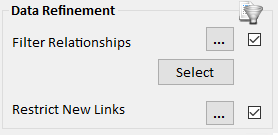
- Use separate data refinement for filtering and limiting new items added with Get Links.
- Get Links -> Between Selected can hide unlinked entities and apply a new layout to the results.
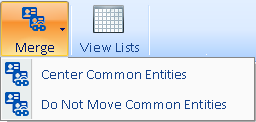
- Merge multiple saved Visualizer diagrams and list their entities and relationships.
- Entity names are replaced by custom labels in output lists and Excel exports.
- New layouts only reposition visible entities, leaving filtered (invisible) entities unchanged.
- Online maps use OpenStreetMap or Azure Maps.
 New Features Document
Search Enhancements
- Advanced Entity Search is reorganized into four tabs with new search options.
- Search for multiple entity names at once using Exact, Starts With, or Contains matching.
- Find most recently changed items based on a combination of Created and Modified dates.
- Search for multiple metadata values at once, including values from lookup lists.
- Simple Entity Search adds Exact, Starts With, and Contains matching, plus searches for multiple names.
- Copy rows from search results and other data grids directly into Excel with column headers.
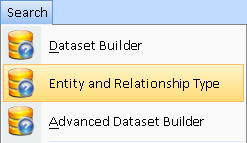
- Search by Entity and Relationship Type directly from the Search menu.
Database Upgrades and Performance Improvements
- Significantly faster database loading, searching, Visualizer operations, calculations, filtering, and editing.
- Automatically upgrade existing databases for Version 11.
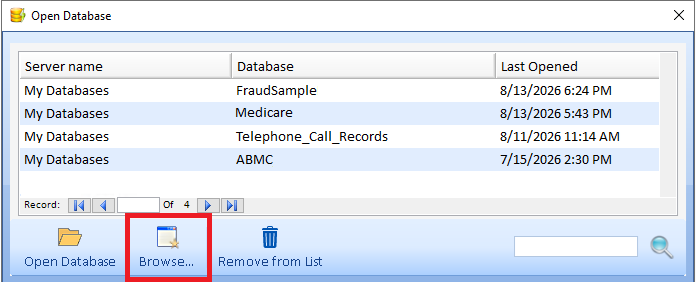
- Simpler database selection and opening.
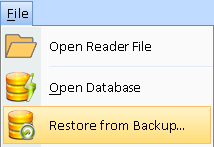
- Restore a database from a backup file without using SQL Server Management Studio (SSMS).
Document Enhancements
- Search text in PDF files.
- Add or delete multiple documents at one time.
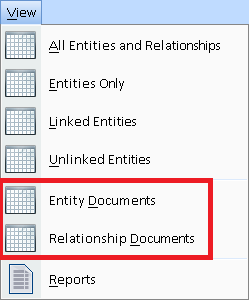
- See all Entity and Relationship Documents from the View menu.
Export Enhancements
- Export to Excel with improved international character support and Windows regional date/time formats.
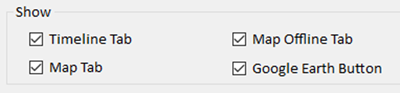
- Control whether Reader users can access Timeline and Geospatial features in exported diagrams.
Entity View and Edit
- Load relationships on demand when viewing entities with more than 1,000 relationships.
- Save Entity Type icons to a file from the Entity Type editor.
Other Enhancements
- Improved report formatting, About Box, and error handling.
- New Command Line options for automated imports.
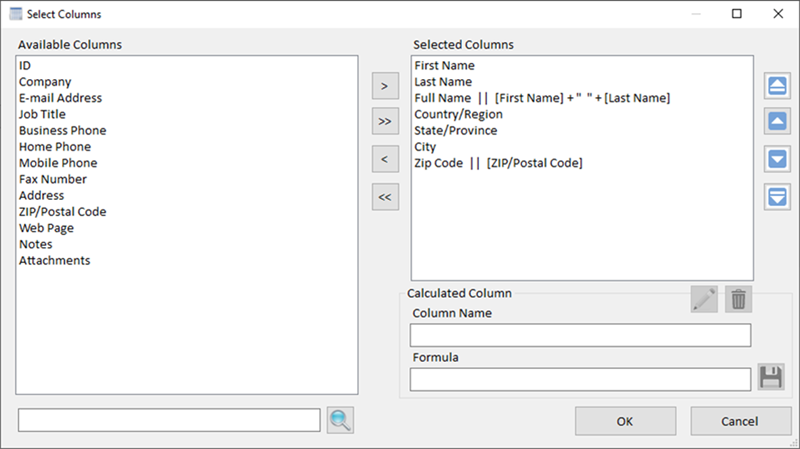
Select Just the Columns You Need
The new Select Columns feature lets you choose just the columns to import and their order. This simplifies the Import form by displaying only the source columns you need.
Add Calculated Columns
Calculated columns let you transform and combine source data without modifying the original data. Create formulas that reference source columns and other calculated columns.
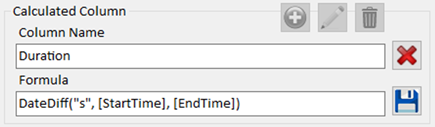 Create a Calculated Column by Referencing Columns and Using Formulas
A calculated-column's formula can:
- Reference column names.
- Reference other calculated columns.
- Support any expression and function the source data allows.
- Be referenced later in the WHERE clause.
Import Named Ranges and Tables in Excel Spreadsheets
When an Excel spreadsheet is selected for import, choose from its named ranges and tables. You can still specify an explicit cell range, but selecting a named range or table eliminates the need to define one manually. This is especially helpful when importing files generated by systems that export data as predefined Excel tables or named ranges.
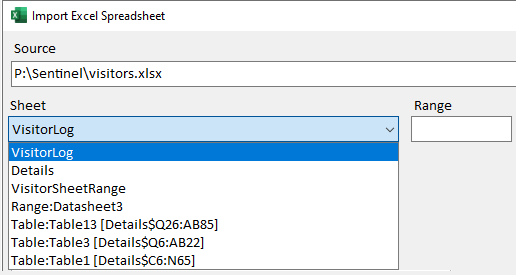 Sheet dropdown includes worksheet names, named ranges, and tables
When import settings are saved, the named range or table automatically adjusts to its current location and size the next time the spreadsheet is imported.
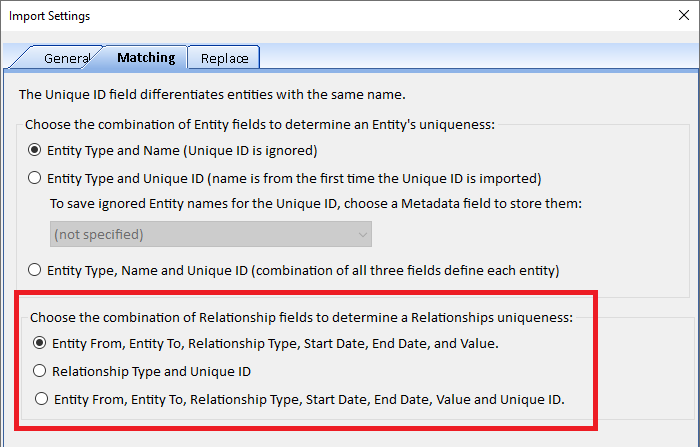
When importing relationships, Sentinel Visualizer needs to determine if it is new or already exists. Version 11 adds support for a Unique ID column and provides three ways to determine whether a relationship is unique:
- Entity From, Entity To, Relationship Type, Start Date, End Date, and Value
- Relationship Type and Unique ID
- Entity From, Entity To, Relationship Type, Start Date, End Date, Value, and Unique ID
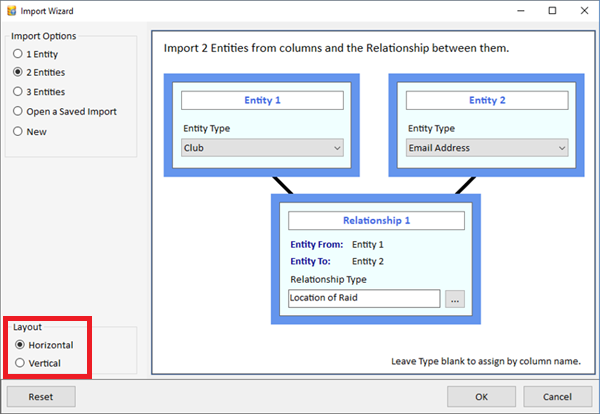 Horizontal Option for Entity Boxes
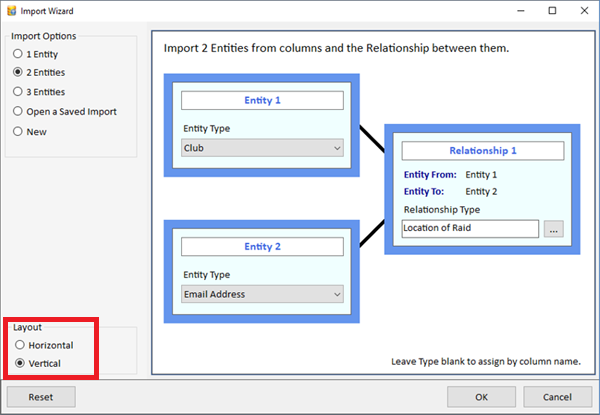 Vertical Option for Entity Boxes
Data Preview
- Blank rows are excluded
- Relative image paths resolve correctly
- Date columns show their time portion
- Brief field text is shown
Validate the Entire Data Source Before Importing
Before importing begins, Sentinel Visualizer validates the entire source and reports up to 100 errors at once, letting you correct multiple problems in a single pass. For large datasets, the validation process can be canceled.
Previously, only the first 500 rows were validated and processing stopped at the first error. Errors later in the source could therefore cause the full import to fail.
Improved Date Parsing
You can specify a custom date format, such as YYYYMMDD. If the value cannot be converted using that format, your Windows date format is applied. If neither format produces a valid date, the error is logged.
Add Topic to Existing Entities and Relationships
Topics are used to tag related entities and relationships. They are also used with Advanced Security Features to control the data users can see. All imported new entities and relationships are assigned the specified topic.
If an import encounters an existing entity or relationship, it isn't added again. However, if the specified Topic isn't already assigned to it, Version 11 adds the Topic. This lets an import assign additional Topics to existing data, rather than assigning the Topic only to newly created entities and relationships.
Import Form Enhancements
- WHERE clause is kept when source data changes.
- Multiple rows in a box can be deleted by pressing the delete key.
- Improved placement of the Import and Query Builder user interface boxes.
- When saving the import specifications, the SVIX’s folder location is remembered.
Additional Enhancements
- Improved handling of source data that is locked, unavailable, or corrupt.
- Import of text files converted to UTF-8 format for improved support of international data.
- Text files with periods in their name or in READONLY folders can be imported.
- SQL Server tables in addition to the dbo schema can be selected for import.
- Improved performance with only the selected columns retrieved.
- If an existing entity or relationship is detected, it is skipped and not imported.
Version 11 makes Visualizer diagrams faster and easier to navigate, rearrange, filter, and analyze.
Select all Entities; Zoom, Stretch and Compress Your Diagram
Simplify and quickly view your diagram in different ways with a single click:
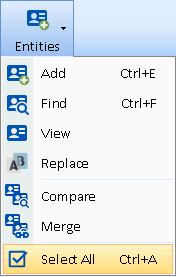 Select all Entities with Ctrl+A
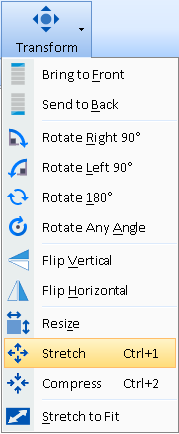 Stretch and Compress with Ctrl+1 and Ctrl+2
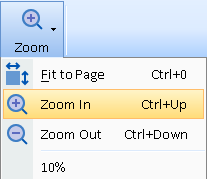 Fit to Page with Ctrl+0, Zoom in and Out with Ctrl+Up and Ctrl+Down
Stretch versus Zoom
Stretch and Compress change the spacing between entities without changing the size of entity images or label text. Zoom changes the scale of the entire diagram.
Stretch is useful when long entity names need more room, while Compress brings widely spaced entities closer together.
Zoom In and Out
The Zoom In and Out menu items let you adjust the zoom level of your diagram. Rather than specifying a specific zoom level, use Ctrl+Up to Zoom In and Ctrl+Down to Zoom Out. Zoom with Ctrl plus mouse scroll wheel up and down remains.
Run a New Tiled Network Layout
Easily rearrange the location of your entities and relationships with Ctrl+T. Selecting this multiple times can quickly show different layouts that may improve your network visually.
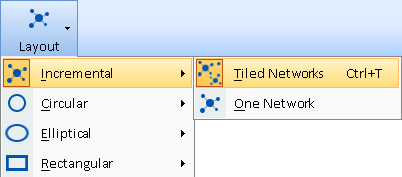 Apply a New Tiled Network Layout with Ctrl+T
Data Refinement lets you use the Dataset Builder to:
- Filter and select entities and relationships on your diagram.
- Limit the new items added with Get Links.
Previously, the same criteria were used for both. Version 11 lets you define separate criteria for filtering/selecting items on the diagram versus limiting new items added with Get Links. For instance, you may want to add only linked phones rather than all linked entities. Each Data Refinement section has a […] button for specifying the criteria and a checkbox to enable it.
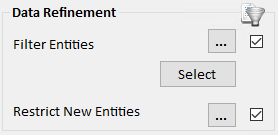 Entity Data Refinement
 Relationship Data Refinement
Get Links -> Between Selected retrieves entities and relationships to connect the selected entities. Version 11 adds options to hide entities that aren't connected and automatically apply a new layout to the results.
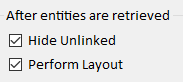
After the entities are retrieved, Sentinel Visualizer can hide unlinked entities and automatically rearrange the remaining entities for a more visually appealing layout.
By default, the entity label is its name. You can customize the label individually or create it from the entity's Type, Status, Start and End dates, Metadata, metrics, and other values. The custom label now appears in the output Lists and Excel output instead of the original name.
- Online maps now use OpenStreetMap and Azure Maps instead of Bing maps.
- Opening the Visualizer loads more quickly without flashing.
- If the labels on Relationship lines are customized with counts, sums, start/end dates, and/or metadata, when the Timeline is filtered, the labels are adjusted to the filtered relationships.
Advanced Entity Search is redesigned to make complex searches easier to build. Search criteria are reorganized into four tabs, with new options for multiple names, metadata values, lookup lists, and date ranges.
- Search for a list of entity names in a grid.
- Metadata type search for multiple values.
- If a Metadata type has lookup values defined, a new selection form is available.
- Find most recently modified entities.
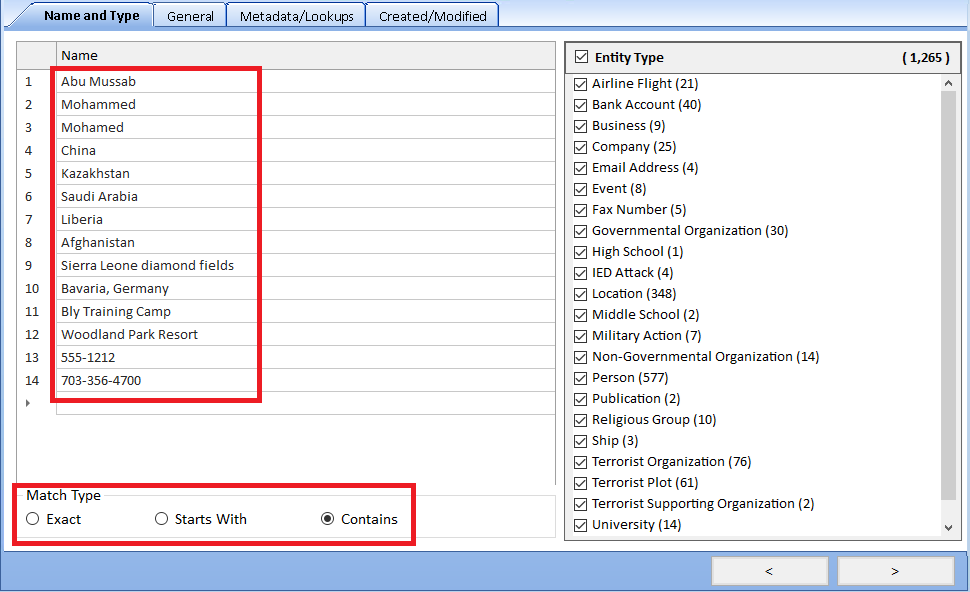
New Name and Type Tab
The Name and Type tab supports multiple entity names that can be copied and pasted from another source like a spreadsheet. Options let you search for Exact, Starts With or Contains.
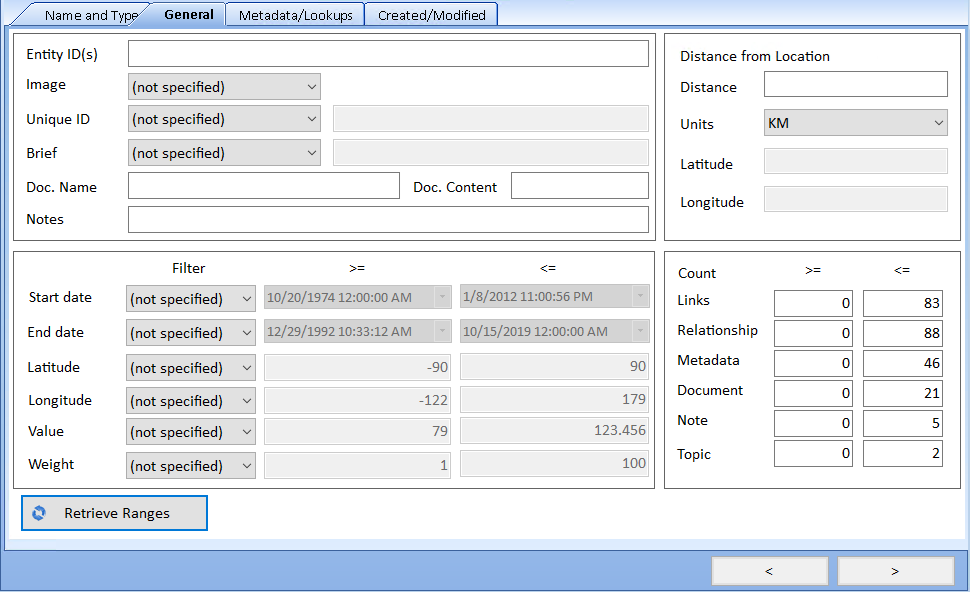
General Tab
General Tab has many values, ranges, distance, and count searches.
[Retrieve Ranges] button loads the low and high values for each column.
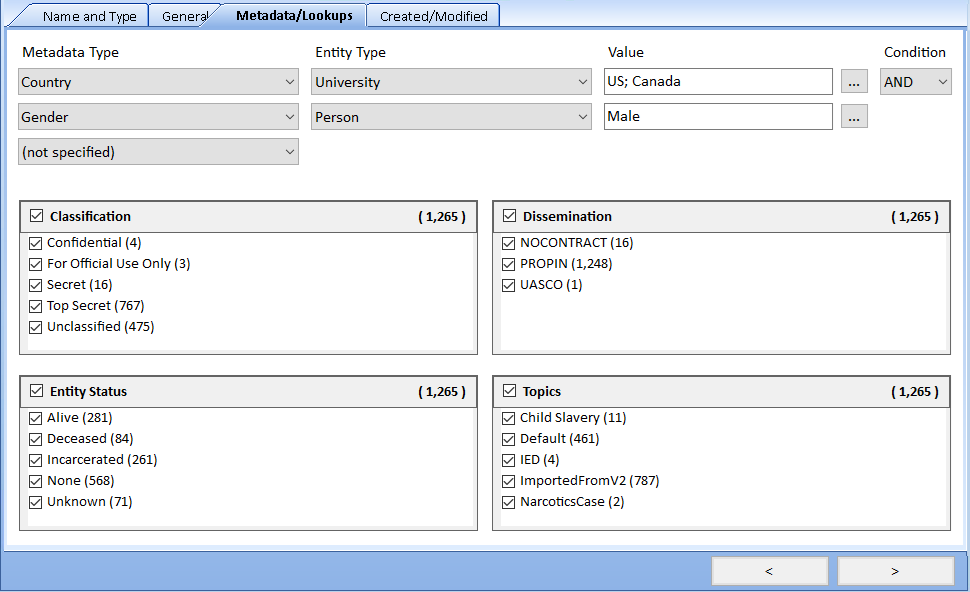
Metadata/Lookup Tab
Search Metadata and Lookup Values for Classification, Dissemination, Entity Status and Topics
Multiple metadata values are separated by semicolons including wildcard searches.
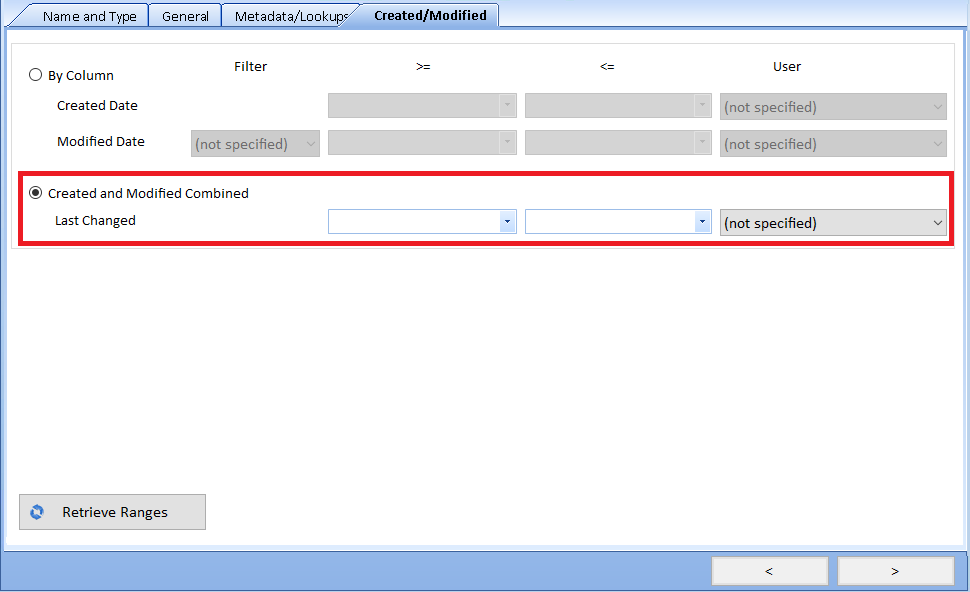
Created/Modified Tab
An entity or relationship always has a Created Date, but if it wasn’t modified later, the Modified Date is blank.
A new Last Changed search finds recently changed records. It uses the Created Date when the Modified Date is blank.
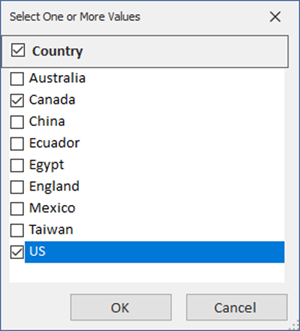
Metadata Type: Lookup List Picker
For Metadata searches, if the Metadata Type has a lookup list, a new selection form lets you pick one or more of them.
Three new search options: Exact, Starts With, Contains.
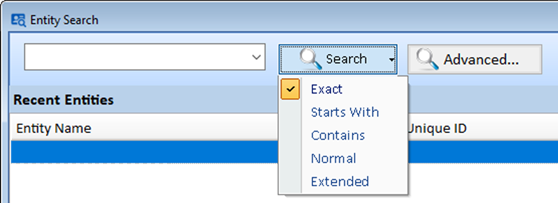
Search Multiple Values
Search for multiple values separated by semicolons.

The Search and Query Builder results show lists of entities and relationships with improvements:
- Brief text is shown.
- Time is omitted for date-only values (midnight).
- Entity Latitude and Longitude are shown with greater precision.
- Numeric values are right-aligned for easier comparison.
- Taller rows and word wrapping display more information.
- Data grids consistently use Calibri font.
- Copy rows from any data grid with Ctrl+C and paste them into Excel with column headers.
For entities, additional columns are shown for each entity:
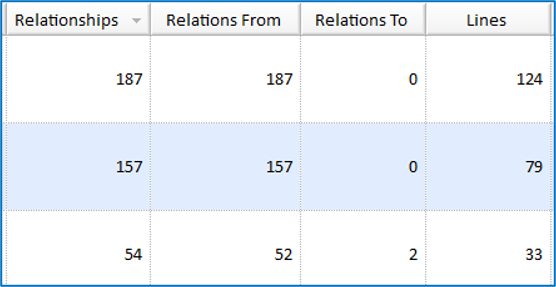
- Relationships: Total number of relationships with other entities.
- Relationships From: Number of relationships FROM this entity to other entities.
- Relationships To: Number of relationships TO this entity from other entities.
- Lines: Number of connected entities, regardless of the number of relationships with each entity.
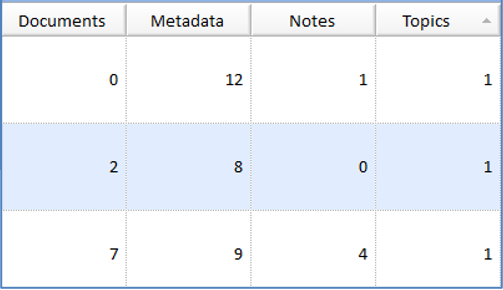
Entities and relationships now show the number of associated Documents, Metadata, Notes, and Topics:
Version 11 improves performance throughout Sentinel Visualizer, with particularly noticeable benefits for large databases and complex Visualizer diagrams:
- Quicker loading of databases, especially previously opened databases, including search lists showing counts by lookup value.
- Visualizer offers faster incremental layouts, network metric calculations, dataset filtering, and online map loading.
- Optimized entity thumbnails reduce image-processing overhead and improve performance.
- Optimized searches for linked entities and relationships by type.
- Faster entity name and metaphone searches.
- Faster searches for entity and relationship counts of documents, metadata, and notes.
- Quicker saving of entity and relationship edits.
The first time Sentinel Visualizer Version 11 runs:
- If the product key was provided in the setup program, the program is automatically activated if there’s an internet connection.
- While the sample database is being created the first time, a progress meter shows the steps and opens the database once it is created.
- If Group Policy prevents writing to the shared Public Documents folder, the My Documents folder is used.
- When a database is opened for the first time, the Most Recently Used (MRU) list that appears on the home page is pre-populated with entities that have the most relationships.
Database Updates
The first time an existing database is opened with Version 11, the database is backed up and upgraded while retaining its previous settings.
- DateTime columns are updated to higher precision DateTime2.
- Binary columns are updated.
- Additional database indexes improve search and query performance.
- Updated metaphone storage.
- Cached values for database, entity, and relationship counts.
Each entity and relationship can have multiple documents assigned to it.
- When editing an entity or relationship, multiple documents can be added or deleted at one time. Previously, they could only be added or deleted individually.
- Sentinel Visualizer now extracts text from attached PDF files so their contents can be searched. When an existing database is upgraded to Version 11, a background process extracts searchable text from previously saved PDFs.
- Document lists use the file-type icon from the associated Windows application, so icons may differ between computers.
Documents Added to View Menu
New Entity Documents and Relationship Documents options on the View menu display all documents associated with entities or relationships, along with the corresponding entity or relationship.
Export to Excel
- Saves files as .xlsx by default with improved international character support.
- Exports data to a formatted Excel table with automatically sized columns.
- Date/time columns use your Windows regional formats.
Export to Reader
The Visualizer diagram can be saved as a file to share with others using the FREE Reader version.
If your diagram includes timeline or geospatial data, the Reader export offers four new options to control what recipients can view: Timeline tab, Map tab, Map Offline tab, and Google Earth button.
Load Relationships on Demand
 When viewing an entity with 1,000+ relationships, a prompt confirms loading the Relationship tab since that takes time.
A Refresh button can load it later.
When viewing an entity with 1,000+ relationships, a prompt confirms loading the Relationship tab since that takes time.
A Refresh button can load it later.
Entity Type Icons
The built-in entity type icons, defined in the Entity Type lookups, are updated to higher resolution graphics when the database is updated to Version 11.
The entity type editor now lets you save the current icon to disk:

Reports
Improved metadata formatting in Entity and Relationship Reports.
About Box
- New button to launch the Microsoft System Information utility.
- New button to generate an application information log file.
Error Handling
Improved error handling for database creation and verifying SQL Server Express is installed. Error logs are easier to read with more details. Execution logs can be generated for tracing.
New Command Line Options for Automated Imports
The command line lets you run the program without using the user interface. After specifying the database, two new command line options are available for importing data.
Microsoft Certified Partner

Partners Welcome
Do you provide services to government and commercial customers seeking analytic solutions?
Contact us
In-Q-Tel Portfolio Company

Discover
Sentinel Visualizer Comparison to Harris/IBM's i2 Analyst's Notebook